· By Maksym Rakomin
A meal photo can be a memory, an idea for dinner, or something you want to send to a friend. It does not always need a calorie count beside it. In AVGusto 1.6.0, sharing starts with that choice: show the meal on its own, or include the estimated nutrition. You decide what belongs on the card.
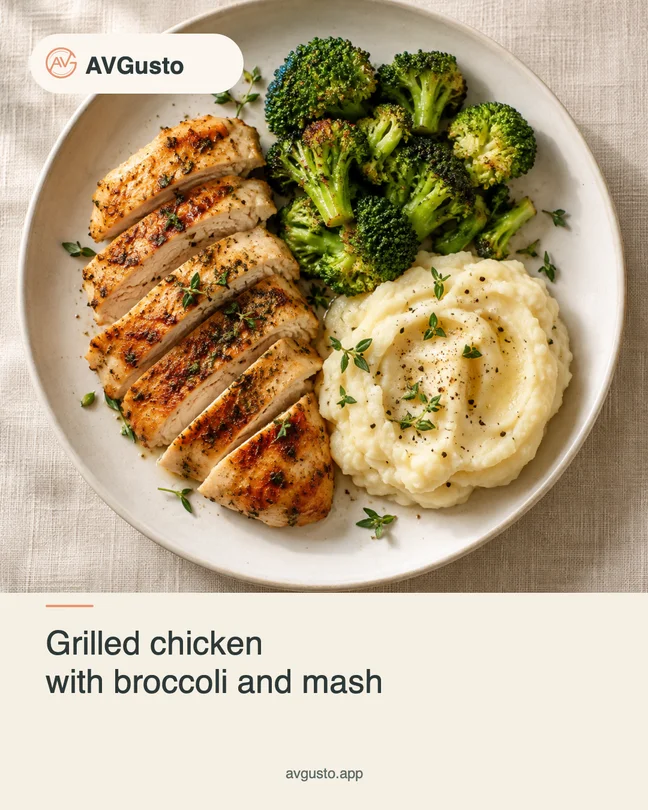
Photo and meal name
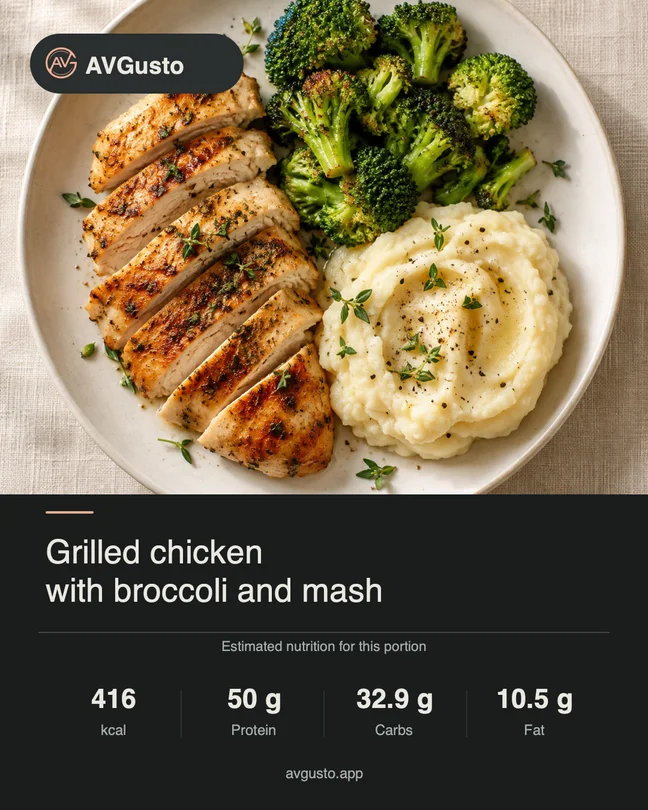
With estimated nutrition
Start with a scan or a saved meal
Open sharing from your scan results or revisit a meal in your diary. From the results, you can share without adding a diary entry, or share and save the meal together. This makes it easy to send a photo while keeping your diary for the meals you actually want to record. Sharing and saving are separate choices.
Choose how much to show
A simple card includes the meal photo and name. A nutrition card also includes estimated calories, protein, carbohydrates and fat. Neither option is a judgement of the meal. Choose the details that make sense for the conversation, whether you are sharing a cooking idea or discussing the ingredients. You can check the finished card before sending it.
Make the photo fit
Crop the photo to bring the part you want to share into view. Then choose from three card designs and a light or dark appearance. These are presentation choices: they do not make the nutrition estimate more precise. Use the preview to check the crop, meal name and visible details, especially if you are sending a card with numbers.
Treat the numbers as estimates
An AI photo scan cannot weigh a portion or see every ingredient. Cooking oil, sauces and food hidden underneath can change the result. Review the recognised meal and portion, and adjust them where needed before sharing nutrition details. A card gives context; it is not a laboratory measurement or medical advice. Leaving the numbers out is also a perfectly useful option.
Choose where the card goes
When the preview is ready, use the sharing flow to choose a receiving app. Creating a card does not publish a public AVGusto post. The destination you select has its own audience and privacy settings, so check the recipient before sending. Scanning still sends the photo for AI analysis, and saved nutrition records sync to your account. Sharing is optional.
Take a final look
Before you send, ask whether the photo shows what you intended, whether the name fits, and whether you want nutrition details in this conversation. If an estimated value looks wrong, return to the meal and correct the input. Then share when it suits you. There is no need to turn a meal into a score: the card can simply say, “Here is what I made.”